Are you looking to learn how to curve text in Cricut Design Space? Then this post is for you!
I’m going to show you two different ways you can curve text in Cricut Design Space. And both ways are very easy to learn and use.
The first way to curve text in Cricut Design Space is with the Curve Tool while on a computer. The second method is how to curve text using the Cricut App on an Ipad, phone, or tablet (or can be used on the desktop version).
Cricut is constantly making updates to Design Space so I’m hopeful one day the curving tool will be available on the Cricut app so it can be used on an IPAD, phone, or tablet. Until then, I have a very easy to curve text while we wait for the Curve tool.
Curving text allows you to be even more creative with your Cricut Projects because you can curve text any way you want!
If you need additional help in Cricut Design Space, check out my other tutorials:

HOW TO USE THE CURVE TOOL IN CRICUT DESIGN SPACE
If you want to curve text in Cricut Design Space on the computer then you can use the Curve Tool.
The curve tool is a very simple and straightforward feature in Cricut Design Space.
You’ll want to click ‘text’ on the left-hand side and type in your text. Then change the font to the font you want to use for your project.
If you haven’t picked out a font yet or don’t like the fonts that came with Cricut Design space, you can always upload your own fonts.
Once you have the right font selected, you’ll want to select the text and then click on “Curve” in the top toolbar. A box will pop up with a slider and you can curve the font based on an oval diameter.

If you slide the bar to the right, the text will curve down. If you slide it to the left, the text will curve up.
You can also move the letters closer or further apart by using “Letter Space” in the toolbar at the top.
You can also ungroup the letters and move them manually to get them in the exact spot if the letter space tool cannot. After you are done, select all the letters and then click attach to make sure they are cut out correctly.

HOW TO CURVE TEXT IN THE CRICUT APP
If you are creating your projects with an IPad, phone, or tablet, then you might have noticed there is no curve tool feature.
So you’ll need to curve text in Cricut Design Space by using the old method – like before we had the Curve Tool.
So you’ll need to curve text the old way. If you don’t know how to do that, keep reading. I’ll show you how to easily curve text in Cricut Design Space with your mobile device.
It’s not very hard, it just requires a little more manual effort.
You can also curve text this way on your computer if you don’t want to use the curving tool. (Sometimes the curving tool might not give you the shape you wanted).
You’ll use a circle or an oval/sphere to guide you to curve text.
CURVE TEXT ON THE CRICUT APP
It is very easy to curve text in Cricut Design Space without the curve tool.
Just type out the text you want to curve and make it the font you want.
Then insert a circle. You can then change the circle by clicking the unlock feature and manually dragging the 4 corners to form an oval or sphere. So make it the shape you want the curve of the text.
Cricut Tip: If you are on the computer, you can insert an oval shape. So you don’t have to make your own from the circle.
Place your words on top of the circle.
Slowly move the text over the top of the shape and a yellow line will show once it is centered horizontally. So go very slow if you don’t see it, it will come up at the moment they are centered perfectly.

Next- ungroup the text.
Move each letter individually and slightly rotate the letters so the bottom of each letter lines up with the shape.
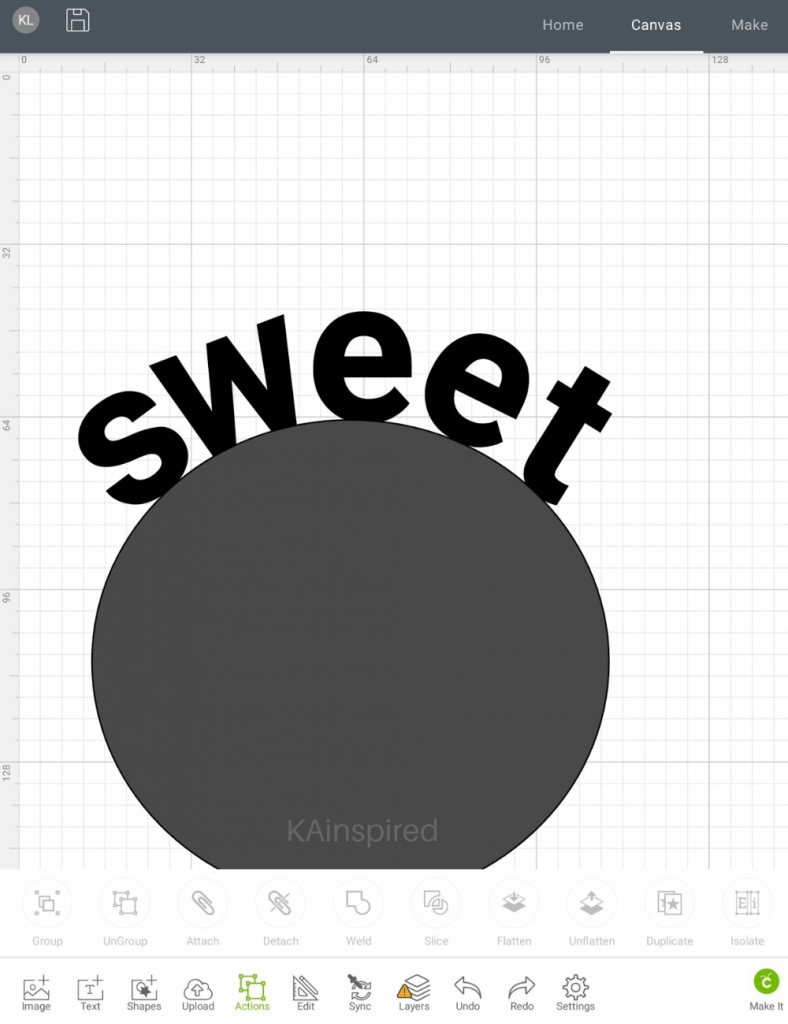
Once you have the letters in the right spot, you can delete the shape and then select all the letters and attach them.
You can do this same process if you want the letters to curve the opposite way.
You would just put the letters inside the bottom of the shape. Then make sure the bottom of each letter touches the bottom of the shape.

CURVE TEXT IN CRICUT DESIGN SPACE
As I outlined above, there are two different ways you can curve text in Cricut Design Space.
While the easiest method is to use the curve tool, the other method is not hard at all. Both ways are the easiest ways to curve text with Cricut.
Unfortunately, the curve tool is not yet available in the Cricut App on Phones, tablets, or IPAD but I’m hopeful Cricut will add that feature soon. So while I’m on the go with my tablet, I use the curving free hand method.
Curved text is fun to use for all your Cricut Projects. You can use curved texts on signs, t-shirts, glasses, and so much more!
Drop a comment below and let me know what Cricut projects you use curved text for.
Leave a Reply